Build Build Studio

web / commerce / systems
built across markets

Back to Blog

Playbook

WordPress block editor QA checklist before launch

A WordPress launch can fail inside the editor even when the frontend looks polished. Use this block editor QA checklist to test blocks, patterns, templates, fields, permissions, responsive previews, SEO, and handoff before clients start publishing.

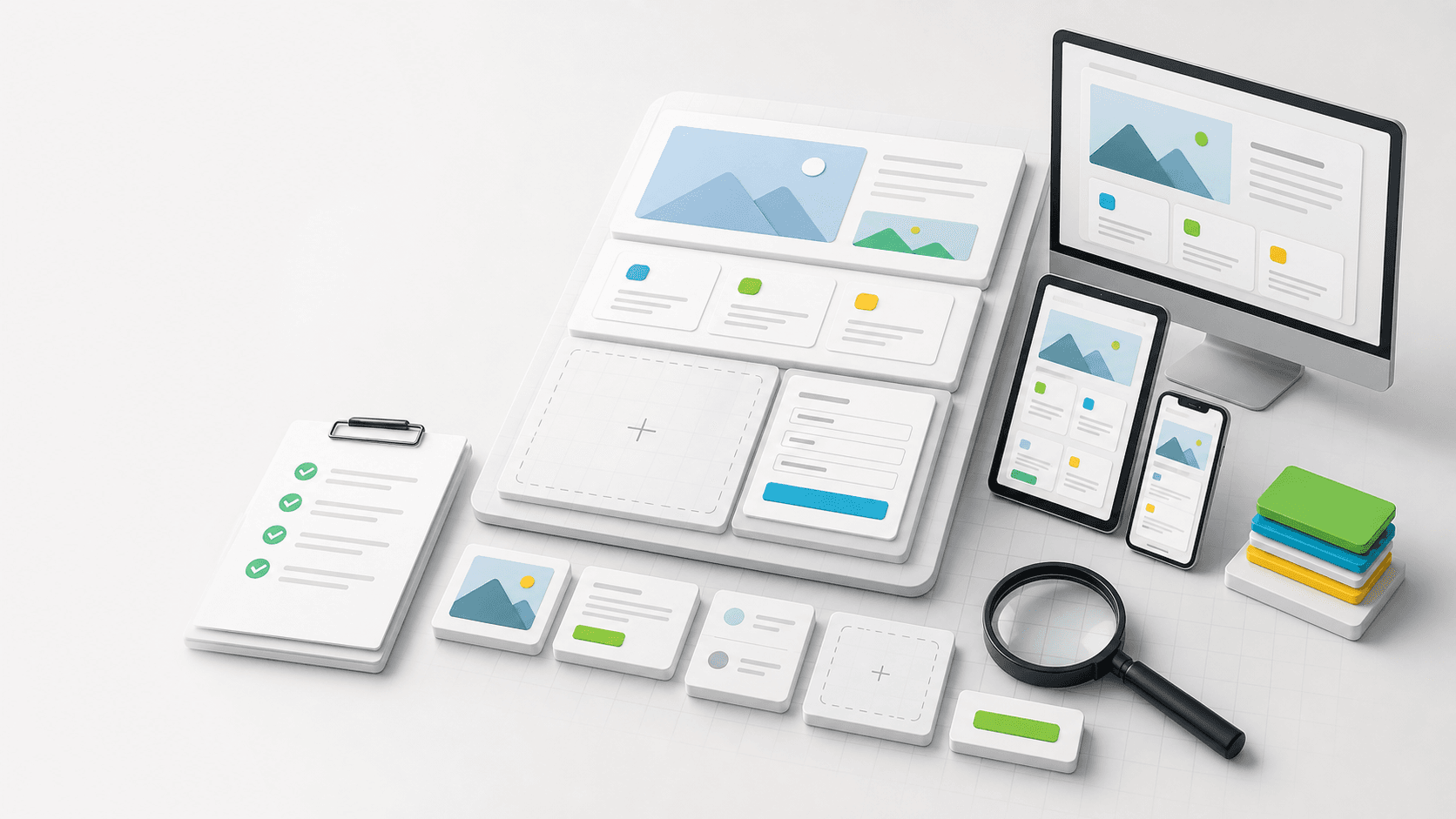
Abstract WordPress block editor QA workspace with modular content blocks, responsive previews, a checklist, and inspection tools.

Practical tool

Editor QA

Published

Jun 14, 2026

Read time

10 min read

Topic

WordPress / CMS / Operations / QA / Playbook

01

Use this before clients start publishing

A WordPress redesign can look finished on the frontend and still fail the team that has to maintain it. The most common problems show up after launch: editors cannot find the right pattern, a reusable block breaks on mobile, a custom field accepts the wrong value, or the client duplicates a section and quietly damages SEO output.

This checklist is for custom WordPress theme development, Gutenberg block themes, classic themes with block editor support, Advanced Custom Fields layouts, reusable patterns, multilingual WordPress sites, and maintenance retainers. Run it before launch, before client training, and after any major theme, plugin, or content model change.

02

Step 1: Build a block and template inventory

Do not QA the editor by opening only the homepage. Start with an inventory of every template and reusable editing unit. That includes pages, posts, case studies, landing pages, resource pages, service pages, archive templates, form pages, legal pages, and any custom post type templates.

Then list every block, pattern, synced pattern, ACF block, shortcode, embed, form module, navigation element, and theme-controlled section that editors can touch. This inventory becomes the test matrix and the future handoff document.

  • Mark each item as locked, editable, reusable, duplicated, deprecated, or developer-only.
  • Record where each block is allowed: pages, posts, landing pages, custom post types, or restricted templates.
  • Identify blocks with SEO impact, including headings, FAQ, schema output, image fields, breadcrumbs, and internal links.
  • Flag any block that depends on plugin settings, API data, third-party embeds, or theme options.

03

Step 2: Test messy real content, not perfect demo copy

Demo content makes the editor look easier than it is. Real content has long headings, short headings, missing images, duplicate calls to action, awkward line breaks, tables copied from documents, pasted formatting, non-English names, and incomplete metadata. The editor needs to survive that content without layout surprises.

Prepare a small test content set before QA. Use at least one short page, one long page, one image-heavy page, one form page, one resource or article page, and one multilingual page if the site supports more than one language.

  • Test long H1, H2, button, card, tab, accordion, breadcrumb, and navigation labels.
  • Try missing images, portrait images, transparent PNGs, large images, small images, and alt text changes.
  • Paste formatted content from Google Docs, Microsoft Word, email, and spreadsheets.
  • Check empty states when optional fields, captions, excerpts, subtitles, prices, authors, or links are missing.

04

Step 3: Verify block controls and guardrails

A good WordPress editor experience is not about giving editors every possible control. It is about giving them the controls they need and blocking the choices that create inconsistent pages. QA should confirm both sides: useful flexibility and deliberate constraints.

Open each block as an editor, not only as an administrator. Check which fields are visible, which choices are limited, which styles are available, and whether the block preview makes the outcome clear before the page is published.

  • Confirm color, spacing, alignment, heading level, image ratio, button style, and column controls are intentionally limited.
  • Check required fields, default values, helper text, validation messages, and fallback output.
  • Make sure synced patterns cannot be accidentally detached, overwritten, or edited by the wrong role.
  • Verify that developer-only settings do not appear in the editor sidebar.

05

Step 4: QA responsive previews and frontend output together

The editor preview is useful, but it is not the final browser. Test each important block in the editor preview, preview URL, and published frontend across desktop, tablet, and mobile. Pay special attention to blocks that combine images, cards, forms, carousels, accordions, tabs, sticky elements, or embedded media.

A simple rule works well: if a block can be reused by the client, it needs to be tested in isolation and inside a real page. Many layout issues only appear when blocks are stacked in a sequence the original designer did not mock up.

  • Check 1440 px desktop, 1024 px tablet, 768 px tablet, 390 px mobile, and one very narrow mobile width.
  • Test block sequences such as hero plus cards, cards plus FAQ, form plus testimonial, and resource grid plus pagination.
  • Confirm focus states, hover states, active states, open accordion states, sticky behavior, and modal behavior.
  • Use the published preview for final approval when the editor preview and frontend differ.

06

Step 5: Check SEO, accessibility, and structured content

Editor QA should protect technical SEO and accessibility because editors can change both after launch. Blocks should produce valid headings, useful alt text fields, semantic buttons and links, correct canonical behavior, clean excerpts, and predictable schema output where relevant.

Test the content controls that feed metadata. For many WordPress builds, that means SEO plugin fields, excerpt fields, custom title fields, Open Graph images, FAQ blocks, author data, custom post type archives, breadcrumbs, and multilingual relationship fields.

  • Confirm the page still has one H1, logical heading order, crawlable links, image alt text, and readable button labels.
  • Check SEO title, meta description, canonical URL, Open Graph image, excerpt, slug, and indexability controls.
  • Validate FAQ, article, breadcrumb, product, local business, or service schema only where the content actually supports it.
  • Run keyboard navigation and screen reader spot checks on accordions, tabs, forms, menus, embeds, and modals.

07

Step 6: Test permissions, publishing workflow, and revisions

A block editor setup that works for administrators may be unsafe for real content teams. Test the roles that will actually use the website: administrator, editor, author, translator, SEO specialist, marketing manager, external writer, and client reviewer if those roles exist.

The workflow should answer practical questions before launch. Who can create a landing page? Who can edit global patterns? Who approves translations? Who can publish, schedule, revert, or restore a page? Who receives notifications when a draft is ready?

  • Test draft, preview, schedule, publish, unpublish, password-protect, restore revision, and duplicate page flows.
  • Confirm restricted roles cannot edit navigation, forms, SEO-critical settings, reusable patterns, theme options, or plugin settings by accident.
  • Check revision history after block moves, pattern changes, custom field edits, and multilingual updates.
  • Make sure staging, production, and backup workflows are clear before editors start changing live content.

08

Step 7: Run a client editing rehearsal

The best QA step is watching a real content owner use the editor. Give them a short task list: create a draft service page, update a case study, replace an image, add a call to action, edit an FAQ, preview mobile, update SEO fields, and submit the page for review.

Do not explain everything immediately. Observe where they hesitate, which labels they misunderstand, and which controls they use incorrectly. Those moments reveal whether the issue belongs in theme code, field labels, permissions, documentation, or training.

  • Time how long it takes to complete common edits without developer help.
  • Note every unclear field label, missing helper text, confusing pattern name, or risky control.
  • Ask the editor to intentionally make a mistake and then recover from revision history or preview.
  • Turn the rehearsal notes into a final launch punch list.

09

What to hand off after block editor QA

The handoff should include more than a login and a training call. Package the block inventory, template map, role matrix, known limits, sample content, screenshots, editor rehearsal notes, SEO fields, accessibility notes, plugin dependencies, backup process, and post-launch support path.

This matters because WordPress maintenance problems often start as unclear editing rules. When editors know which blocks to use, which fields are safe, and how to recover from mistakes, the site stays cleaner for longer and redesign value lasts beyond launch week.

  • Create a one-page block usage guide with block name, purpose, allowed templates, required fields, and examples.
  • Keep a launch QA log with issue, affected block, role, severity, owner, fix, and verification result.
  • Record which blocks need developer support and which can be safely changed by the client.
  • Schedule a 30-day editor review to catch content workflow issues after real publishing starts.

Block editor QA checklist

  • 01QA the editor experience by template, block, pattern, field, role, and workflow instead of only checking the finished frontend.
  • 02Test reusable blocks and patterns with real messy content: long headings, missing images, embeds, tables, forms, multilingual copy, and repeated sections.
  • 03Confirm editor constraints, permissions, responsive previews, accessibility output, SEO fields, and performance before handoff.
  • 04Ask the client or content owner to publish a draft during QA so workflow gaps show up before launch.
  • 05Hand off a block inventory, known limits, screenshots, training notes, rollback path, and post-launch maintenance checklist.

Keep reading

Build a site your team can keep running

Strategy, design, development, SEO foundations, and launch support for brands growing across markets.

Start a projectContact@buildbuild.studio