Digital experiences built for performance + scale
Back to Blog

Playbook

WordPress plugin update QA checklist for maintenance teams

Use this WordPress plugin update QA checklist to plan safe maintenance windows, test staging, protect SEO signals, verify forms and analytics, and roll back quickly when an update breaks production.

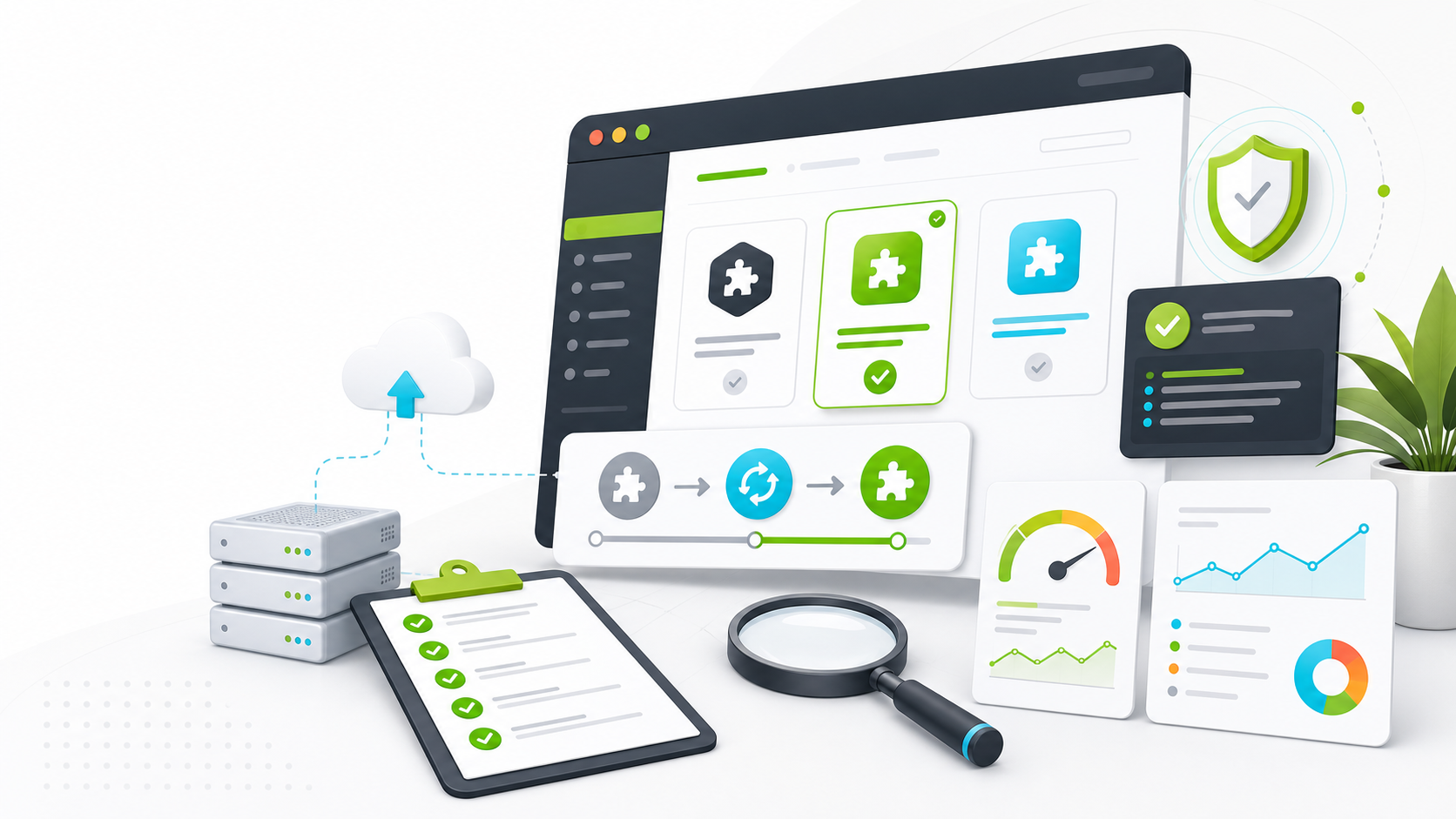
Abstract maintenance QA workspace with plugin cards, an update flow, backup server, checklist, performance chart, and security review panels

Maintenance tool

Plugin QA

Published

May 25, 2026

Read time

10 min read

Topic

WordPress / Maintenance / Technical SEO / QA / Playbook

01

Use this before updating production plugins

WordPress plugin updates look routine until one of them changes a form, blocks an editor field, removes schema output, slows a key template, or conflicts with custom theme code. The update button is small, but the release surface is real.

This checklist is for teams running maintenance support on marketing sites, B2B websites, multilingual WordPress builds, WooCommerce-adjacent sites, and custom themes that rely on SEO, forms, analytics, caching, security, or Advanced Custom Fields. Use it for scheduled monthly updates and for urgent security patches that still need a controlled QA path.

02

Step 1: Classify update risk before touching staging

Start by sorting plugins into risk groups. A typography helper and a payment extension do not deserve the same process. Risk depends on where the plugin appears, whether it writes data, whether it controls public templates, and whether it has caused conflicts before.

Create a small update plan that names the plugin version, reason for the update, affected templates, owner, test priority, and rollback path. This prevents maintenance from becoming a blind batch update where nobody remembers which plugin caused the issue.

  • High risk: forms, ecommerce, SEO, caching, security, multilingual, memberships, custom fields, redirects, analytics, and page builders.
  • Medium risk: media optimization, search, related content, cookie banners, editor enhancements, and third-party embeds.
  • Low risk: isolated admin utilities with no public output and no critical data handling.
  • Mark urgent security updates separately so the team can compress QA without skipping rollback planning.

03

Step 2: Prepare backups, staging, and a source of truth

A safe plugin update starts before the plugin list is opened. Confirm that the production database and files have a fresh backup, that the restore process is known, and that staging matches production closely enough to catch real conflicts.

Keep one source of truth for the maintenance window. It should include the update order, plugins included, pages to test, credentials needed, backup timestamp, rollback owner, and communication plan if the site has to be paused or restored.

  • Record the backup timestamp, storage location, restore owner, and expected restore time.
  • Sync staging with production content, plugin versions, active theme, PHP version, caching settings, and key environment variables.
  • Pause content edits during the update window or record exactly what changed while QA is running.
  • Capture current versions before updating so rollback does not depend on memory.

04

Step 3: Run a pre-update smoke test

Before applying updates, test the current site in staging. This sounds slow, but it saves time when something fails later. Without a baseline, every broken form, JavaScript error, or layout issue becomes a debate about whether the update caused it.

Use the same smoke test every cycle. It should be short enough to run quickly and broad enough to cover the site’s revenue, SEO, and editing paths. Save screenshots or notes for anything already broken before the update.

  • Open the homepage, one service page, one blog post, one form page, one search or archive page, and one multilingual page if relevant.
  • Submit a test form and confirm the thank-you state, notification email, CRM record, and spam protection behavior.
  • Check the browser console for visible JavaScript errors on high-traffic templates.
  • Confirm the WordPress editor can open, preview, save, and update a representative page without errors.

05

Step 4: Update in controlled groups

Avoid updating every plugin at once unless the site is low risk and the rollback plan is simple. Group updates by dependency and blast radius. For example, update compatibility layers before dependent plugins, update form add-ons with the main form plugin, and keep caching changes separate from SEO or editor changes.

After each high-risk group, run the relevant part of the smoke test. The goal is not to make maintenance slow. The goal is to make failures attributable, so the team knows which update to roll back or investigate.

  • Read changelogs for breaking changes, minimum PHP or WordPress version changes, and database migrations.
  • Update one high-risk system at a time when the site depends on forms, multilingual routing, custom fields, or caching.
  • Clear only the caches needed for testing so you can separate cache behavior from plugin behavior.
  • Do not update theme code and high-risk plugins in the same pass unless the release plan connects them.

06

Step 5: QA public pages and business-critical paths

After updates, test the paths that create business value before reviewing cosmetic details. For a B2B website, that usually means service pages, lead forms, case studies, contact pages, calendars, downloadable assets, newsletter signup, and analytics events. For WooCommerce or donation flows, include product, cart, checkout, payment, and order emails.

Use real content states, not only clean pages. Test long titles, missing images, embedded videos, gated forms, translated pages, redirects, and pages with custom blocks. Plugin conflicts often appear in the less common states that editors still rely on.

  • Submit every priority form and confirm delivery, hidden fields, CRM mapping, consent behavior, and autoresponders.
  • Review mobile layouts for plugin-injected UI such as banners, popups, recaptcha, reviews, calendars, and forms.
  • Check search, filters, pagination, archives, downloadable files, embeds, and protected content if the site uses them.
  • Confirm admin-only notices, debug output, or plugin warnings are not leaking onto public pages.

07

Step 6: Protect SEO, analytics, and performance

Plugin updates can quietly change rendered HTML. SEO plugins can alter metadata, schema, canonicals, sitemaps, robots rules, breadcrumbs, and Open Graph tags. Caching and optimization plugins can change script order, lazy loading, critical CSS, and image delivery. Analytics plugins can double-fire or stop firing after consent changes.

Run a focused technical QA pass on the templates that matter most. Compare the updated staging page to production where possible, then repeat the priority checks after production updates are complete.

  • Check title tags, meta descriptions, canonicals, robots tags, hreflang, schema output, XML sitemaps, breadcrumbs, and redirect rules.
  • Verify analytics events for page view, form submit, CTA click, download, calendar booking, and purchase if relevant.
  • Review Core Web Vitals-sensitive templates after caching, image, script, or builder plugin updates.
  • Confirm accessibility basics: focus states, labels, contrast, keyboard access, and plugin-injected modal behavior.

08

Step 7: Test editor workflows, not only the front end

Maintenance QA often misses the editor experience because public pages look fine. That creates support tickets later when marketing tries to edit a campaign page, translate a field, update a form, or replace an image and the workflow is broken.

Ask an editor or QA reviewer to complete a normal content task in staging. The test should include opening the page, editing fields, previewing changes, saving, reviewing the front end, and reverting the test content.

  • Test the block editor or classic editor on a page with custom fields and reusable sections.
  • Open field groups, theme settings, menus, widgets, redirects, SEO fields, forms, and translation screens.
  • Confirm user roles still have the right permissions after security or workflow plugin updates.
  • Update the handoff documentation when field names, plugin screens, or publishing steps change.

09

Step 8: Release, monitor, and document the result

Production updates should have a short release note, even for routine maintenance. Record what changed, when it changed, who approved it, what was tested, and which issues were found. This creates a useful history when a plugin starts causing repeated problems.

Monitor the first 24 hours after release. Check uptime, error logs, form submissions, analytics, Search Console alerts, cache behavior, and editor reports. If an update required a workaround, capture it as a follow-up task instead of leaving it as tribal knowledge.

  • Run the same smoke test on production after updates, with caches cleared and then warmed again.
  • Keep rollback steps ready until the monitoring window passes.
  • Log plugin versions, test results, screenshots, known issues, and next maintenance actions.
  • Escalate recurring conflicts into a refactor, replacement, or custom theme improvement instead of patching the same issue every month.

Update QA checks

  • 01Treat plugin updates as small releases, with risk labels, backups, staging tests, and a named rollback owner.
  • 02Run a pre-update smoke test so you can tell whether a failure was introduced by the update or already existed.
  • 03QA business-critical paths first: forms, checkout-adjacent flows, search, login, media, multilingual pages, and editor screens.
  • 04Check SEO, analytics, schema, redirects, performance, and accessibility because plugin updates often change front-end output quietly.
  • 05Monitor the first 24 hours after production updates and document repeat issues for the next maintenance cycle.

Keep reading

Now booking for Q2 2026

Start a project

Tell us your goal, timeline, and budget. We'll reply within 2 business days with the best next step.

I'm Max, founder of Build Build Studio. I work with a small network of trusted designers, developers, and specialists, keeping senior attention and direct communication close to every project.
Mo – Fr: 9AM–5PMGMT+8 local time

Project communication

Mandarin / ChineseNativeCantoneseNativeEnglishWorking proficiency

Formal proposals and pitch work are scoped as paid discovery.

Start a project